
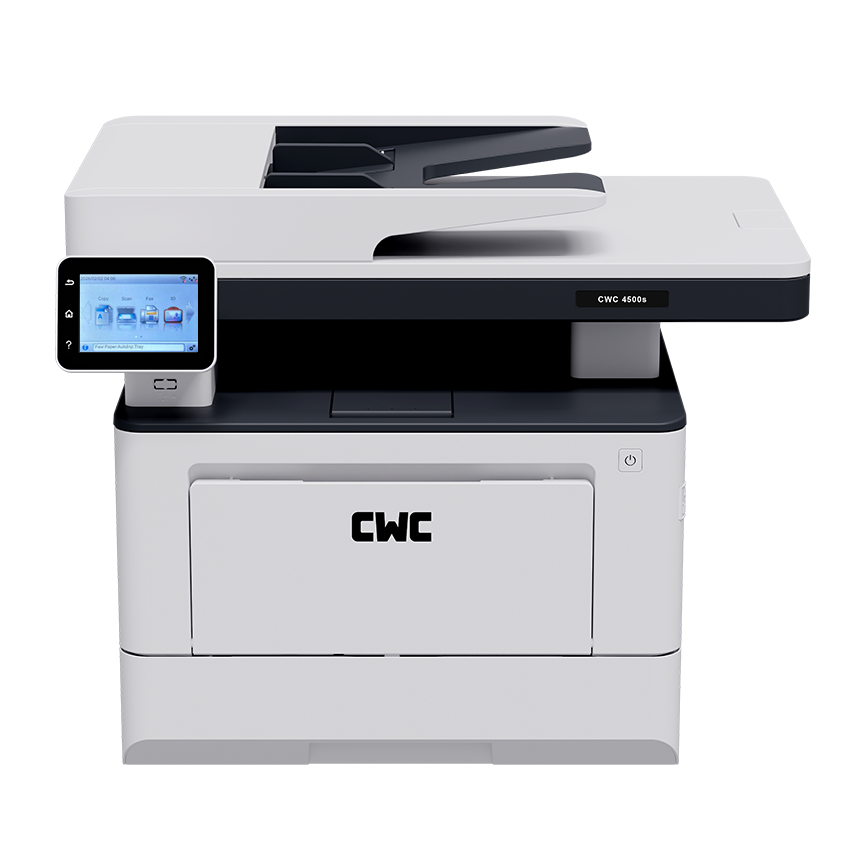
Setting up a printer sounds like it should take five seconds and instead eats up half your afternoon. It doesn't have to. Once you know which of the three connection types your printer uses — USB, Wi-Fi, or Bluetooth — the actual setup to connect a printer to a laptop is a handful of clicks.
Below is everything you need: the setup steps for each method, how to add the printer in Windows, and a troubleshooting list for when the printer just sits there refusing to show up.
A Few Things to Check First
Skipping this part is exactly why people end up stuck later.
- Power the printer on, and confirm it has paper plus ink or toner loaded.
- Update your laptop if it's been a while, particularly on Windows 11.
- Look at the printer or its packaging to see which connection it supports.
- Have the manual or box handy — you may need to look up the model number.
With that out of the way, jump to whichever method matches your printer.
How to Connect a Printer to a Laptop with USB
Nothing beats USB for straightforward setup. There's no network to configure and nothing to type in.
- Connect the USB cable to the printer, then to the laptop.
- Switch the printer on.
- Give Windows a moment — it typically detects the printer and installs the driver without any input from you.
- Once done, you'll get a notification confirming the printer is ready.
Nothing showing up after a minute or so? Head to the troubleshooting list further down.
How to Connect a Printer to a Laptop via Wi-Fi
Prefer to skip the cable altogether? Wi-Fi lets you send print jobs from anywhere in the house — the only requirement is that the printer and the laptop sit on the same network.
- Power on the printer and pull up its Wi-Fi menu from the control panel.
- Pick your home network from the list and type in the password.
- Give it a moment; the printer's display will confirm once it's connected.
- Head over to your laptop and add the printer through Windows Settings (covered next).
That's essentially how to connect a wireless printer to a laptop as well — connect to the network first, then add the device in Windows. Some models throw Bluetooth into the mix too, which follows a similar process.
Adding the Printer in Windows
Connecting the printer to your network is only half the job — your laptop still needs to know it exists.
- Open Start, then Settings.
- Navigate to Bluetooth & devices > Printers & scanners.
- Select Add device.
- Find your printer in the list, then click Add.
- Windows generally handles the driver installation on its own from here.
Printer nowhere to be found? That usually means the driver needs to be installed manually. Head to the manufacturer's site, search using your printer's exact model number, download the driver, and install it. Restart your laptop before trying again.
How to Print a Test Page
Want to confirm it actually works? Print a test page:
- Go back to Settings > Bluetooth & devices > Printers & scanners.
- Click on the printer's name.
- Choose Print test page.
If a page comes out, you're finished — no further steps needed.
USB, Wi-Fi, or Bluetooth — Which One Makes Sense?
| Method | Works Well For | Big Plus | Downside |
|---|---|---|---|
| USB | A single laptop near the printer | Dead simple, rarely fails | You're tied to a cable |
| Wi-Fi | Several devices sharing one printer | Print from any room | Needs network setup |
| Bluetooth | Printers that support it | No cable, no network | Support varies by printer |
If it's just one laptop parked next to the printer, don't overthink it — go USB. If multiple people or devices need access, or the printer lives in a different room, connecting via Wi-Fi is worth the extra few minutes.
When It Still Won't Connect
Most connection problems fall into one of these buckets. Work through them in order.
- The laptop doesn't detect the printer at all → Turn both devices off, then back on. It's an old trick, but it clears up a surprising number of issues.
- The printer doesn't appear under Printers & scanners → Open the settings page again and hit Add device — sometimes it just needs a second scan.
- A Wi-Fi printer shows up as "offline" → It might be powered on but not actually connected to the network. Print a test page from the printer's own screen to confirm.
- A USB printer isn't being recognized → Swap to a different port, and try another cable if one's available. Cables wear out more often than people assume.
- The devices are on different networks → Double-check you're not accidentally on a guest network, and that both devices are on the same frequency band.
- The driver is outdated or missing entirely → Grab the latest version from the manufacturer's website using your exact model number, install it, and restart the laptop.
- A loose cable or port is the culprit → Even a slightly loose USB connection can be enough to break things, despite everything else being set up correctly.
- Nothing above worked → try removing and re-adding the printer. Go to Printers & scanners, select the device, click Remove device, then set it up again from scratch. This resolves a lot of stubborn cases.
- Print jobs going to the wrong place, or nowhere? → Check that the correct printer is set as your default in Windows.
Common Questions
How do I connect my printer to my laptop over Wi-Fi? Get the printer onto your Wi-Fi network through its own menu, then add it to the laptop via Settings > Bluetooth & devices > Printers & scanners.
What's the process for connecting a printer to a laptop with USB? Plug the cable in on both ends and power the printer on — Windows typically installs the driver by itself.
Why won't my printer show up on my laptop? Usually it's a network mismatch, an old driver, or the printer simply being off. Restarting both devices resolves this more often than not.
How do I connect a wireless printer to a laptop in Windows 11? Settings > Bluetooth & devices > Printers & scanners, then Add device, then select your printer once it appears in the list.
Does Bluetooth work for printer connections? Only if your specific printer model supports it. Turn Bluetooth on for both devices, then pair through Settings > Bluetooth & devices.
Note
For a single laptop sitting right by the printer, USB is hard to beat — plug in, and you're done. If you need to print from a few different devices, or the printer's tucked away somewhere else, connecting via Wi-Fi is the better call despite the extra setup. Bluetooth is a nice option too, when your printer happens to support it.
Whichever route you take, you should be printing within a few minutes — and if it doesn't work the first time, the troubleshooting steps above cover nearly every situation.